What's Actually Inside Your Phone
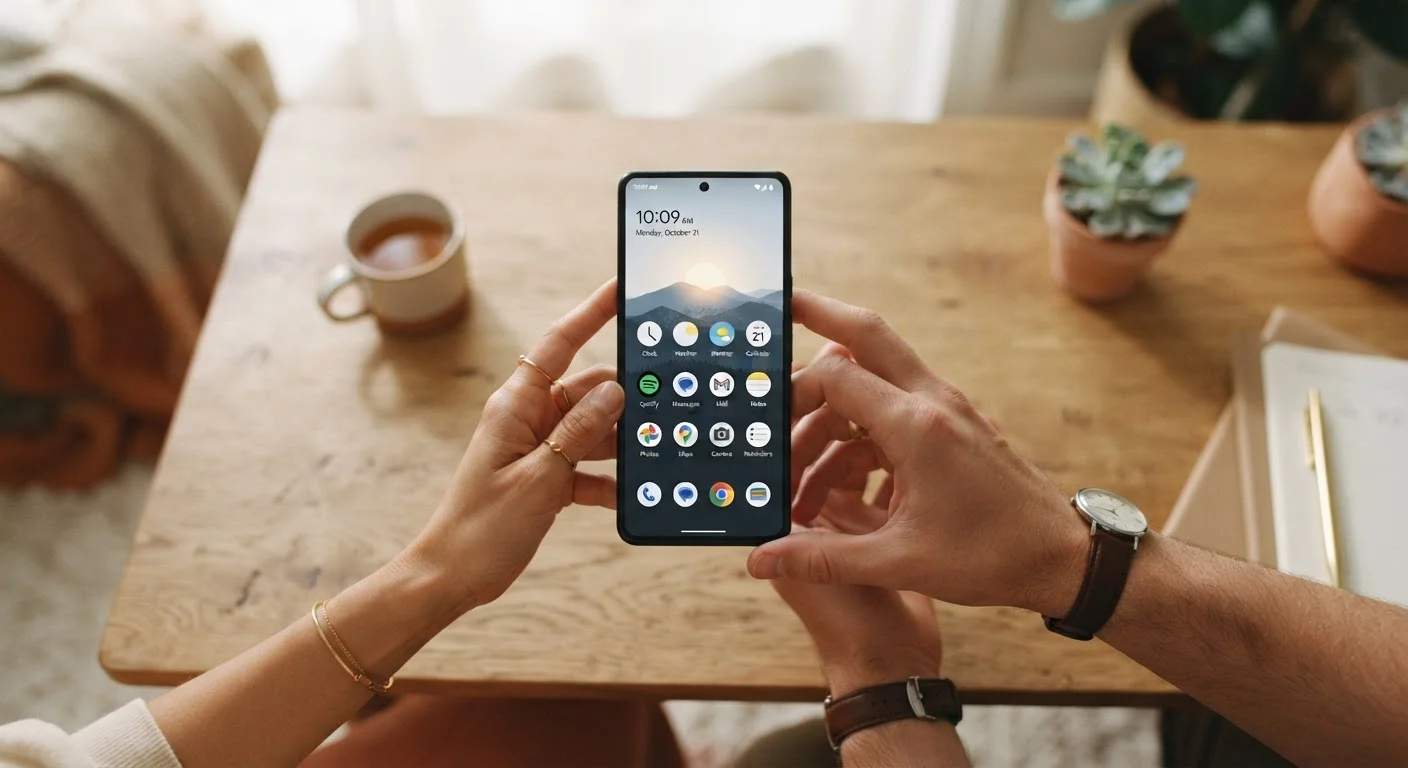
A smartphone is a small computer you carry in your pocket. Understanding its basic parts - even at a high level - makes everything else easier to follow.
Operating system (OS)
The core software that runs your phone and makes all its features work. The two main smartphone operating systems are Android and iOS (used on iPhones).
RAM
Short-term memory your phone uses to keep apps running. More RAM generally means smoother multitasking, but it doesn't store files permanently.
Internal storage
The permanent space on your phone where photos, apps, and files are saved. Unlike RAM, this data stays when you turn the phone off.
App
A software program you install on your phone to perform a specific task - like sending messages, navigating, or watching videos.
Cloud backup
A copy of your phone's data saved to a remote server over the internet. If your phone is lost or broken, you can restore your data from the cloud.
App permissions
Access rights that apps request to use parts of your phone - like the camera, microphone, or location. You control which permissions each app is granted.
The processor is the brain of the phone; it runs apps and handles tasks. RAM (random access memory) is short-term working memory - it keeps apps running smoothly in the background. Internal storage is where your photos, apps, and files live permanently. These three work together, and understanding how they differ can save you frustration. For a deeper look at how storage works, see our plain-language storage breakdown.
On the software side, your phone runs an operating system - either Android or iOS (iPhone). Think of it as the foundation that makes all your apps and features work together.
First-Time Setup: What to Do Out of the Box
When you power on a new phone for the first time, you'll be walked through a setup process. Don't rush it - the choices you make here affect your privacy and usability going forward.
- Connect to Wi-Fi before anything else. Setup downloads updates and account data, which can eat into your cellular data allowance if you're not on Wi-Fi.
- Create or sign in to an account. Android uses a Google account; iPhone uses an Apple ID. These accounts back up your contacts, photos, and app purchases.
- Set a lock screen. Choose a PIN, password, or biometric option (fingerprint or face unlock). This is your first line of defense if your phone is ever lost or stolen.
- Enable automatic backups. Both Android and iOS offer cloud backup. Turn it on now so your data is protected from the start.
If you're new to US wireless service and still figuring out your plan, this first-timer's guide to mobile plans explains what to look for.
Core Features Every New Owner Should Know
Modern phones can do a lot, but most everyday use comes down to a handful of features. Get comfortable with these first.
- Phone and messaging: The Phone and Messages apps handle calls and texts. Tap a contact's name to call or message them directly.
- Camera: Open the Camera app and tap the shutter button. Your photos save automatically to a gallery or photos app.
- App stores: Google Play (Android) or the App Store (iPhone) is where you download new apps. Search by name or browse by category.
- Settings: The gear icon leads to Settings, where you control Wi-Fi, Bluetooth, display brightness, notifications, and much more. There's a lot buried in there - our settings deep-dive covers tools most users overlook.
- Notifications: Apps send alerts to your notification bar (the area at the top of the screen). You can control which apps are allowed to notify you in Settings.
Start With a Clean Home Screen
When you first set up your phone, resist the urge to download every app at once. Start with only what you need - a messaging app, your email, and maybe a navigation app. A less cluttered home screen is easier to learn from and keeps storage usage in check.
Staying Safe From Day One
Security doesn't require technical knowledge - it mostly comes down to a few consistent habits. Our guide to smartphone security habits goes deeper, but here's what matters most when you're just starting out.
- Keep your lock screen active. Set your phone to lock automatically after a short period of inactivity (30 seconds to 1 minute is reasonable).
- Review app permissions. When an app asks for access to your location, camera, or contacts, think about whether that access makes sense for what the app does. You can review and revoke permissions anytime in Settings.
- Install software updates. Updates patch security vulnerabilities. When your phone notifies you of an update, installing it promptly is one of the simplest protective steps you can take.
- Be cautious on public Wi-Fi. Avoid logging in to bank accounts or entering sensitive information on open, unsecured public networks.
Also worth knowing: many popular beliefs about phone security and behavior turn out to be outdated. The truth behind common smartphone myths can help you separate fact from habit.
Keeping Your Phone Running Well
A smartphone is a long-term investment. Small habits - or the lack of them - affect how long it performs well.
Battery care: Lithium-ion batteries, used in virtually all modern smartphones, gradually lose capacity over time. Avoiding frequent full discharges and keeping the phone out of prolonged heat helps slow that decline. For a fuller picture of what shortens a battery's life, see our guide on habits that quietly damage phones.
Storage management: A phone that's nearly full tends to slow down. Periodically delete apps you no longer use, move photos to cloud storage or a computer, and clear cached data from the Settings app.
Physical care: A case and screen protector reduce the risk of damage from drops. Avoid exposing the phone to water unless it's rated for it - and even then, water resistance ratings degrade over time.
If you ever plan to pass along your phone to someone else, learn what to do before selling or trading in your device - skipping that prep can expose your personal data.